
Your brand
Edit your brand
Change the name, logos, colors, type, voice, and facts, and see which edits a rescan keeps.
After a scan, review it and edit anything that is not true before you build a campaign. Review and correct the scan is the check: facts versus suggestions. This page is how to change each part.
Where to edit
Open Context, then Website scans. Three tabs share the work:
- Website scan: the written sections (Positioning, The Mark, Color, Typography, Visual Language, Photography, Voice, Key Language, and any optional sections). Each section has Edit.
- Logos, colors, fonts & facts: the logo files, color roles, fonts, social profiles, color names, the photography prompt, and the voice, business, and guardrails lists.
- Settings: Brand name, plus scan maintenance. The same page is Scan settings in the sidebar.
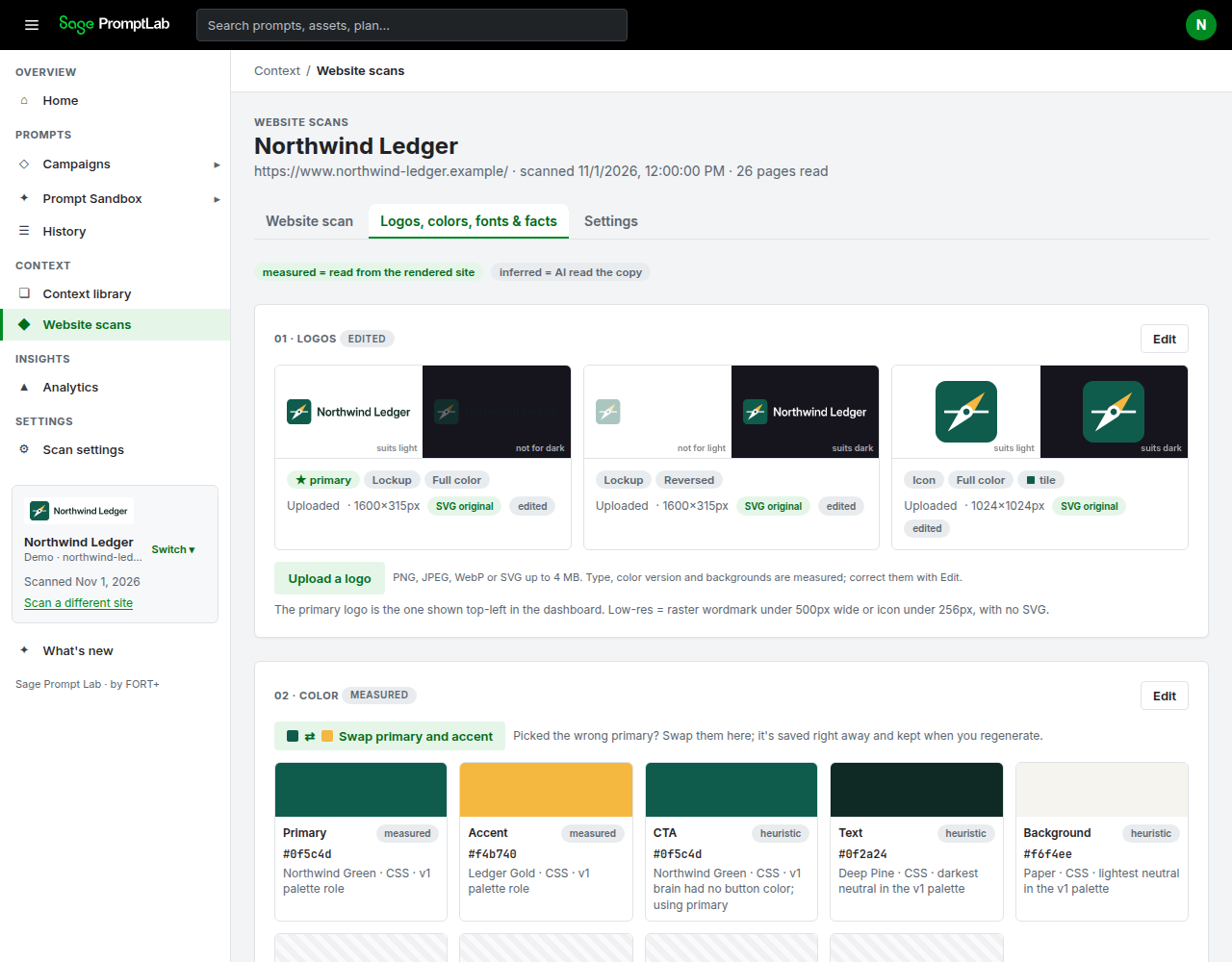
On Logos, colors, fonts & facts, two chips sit under the tabs. measured = read from the rendered site. inferred = AI read the copy. A small chip on a section or a color can also read measured, inferred, heuristic, or edited.
If a line is inferred and it is not true, correct it or clear it. If you do not know the fact, leave it empty. Do not invent a product, a number, a client, or a promise to fill a blank.
How a change is saved
- On Website scan, Edit opens a panel. The eyebrow is Website scan. The title is Edit plus the section name. Save stores only the fields you changed. Cancel and Close leave them. The panel says fields you change are marked as yours, and that rescans and redrafts keep them.
- A field you already saved shows yours · let rescans update it. That hands the field back, so the next rescan or redraft may change it.
- After a save, the section can show Edited by you.
- 01 · Logos, 02 · Color, 03 · Typography, and Social profiles each have their own Edit, then Save or Cancel. Saving… shows while a save is in progress.
- Color names uses Save names.
- Photography prompt uses Save prompt.
- Voice, business, and guardrails use Edit voice, business & guardrails, then Save website scan or Cancel.
- Brand name on Settings uses Save.
What a rescan keeps
Regenerate website scan asks you to confirm first. The message says everything you edited (colors, fonts, logos, and website scan text) is kept, and that the rest is rebuilt from the new scan. In the app, that works like this:
- Fields you save in a Website scan section are kept on Regenerate website scan and on Redraft positioning, voice & key language.
- Color roles, font families, and logos you edit are kept. A logo you upload is kept. Swap primary and accent is saved right away and kept.
- A Brand name you save is kept. Clear it and the name the website gives itself is used again.
- Color names and an edited Photography prompt are kept. Use the built prompt hands the photography prompt back.
- Example icons and style samples stay until you generate them again. A rescan does not delete them.
- Banned words only grow. Words already in the list stay, and the new scan can add more. Deleting a banned word does not survive the next rescan.
- Social profiles save on the page. A regenerate reads them from the website again.
- The lists under Edit voice, business & guardrails (including Tagline, Positioning, Tone, the business lists, and the guardrails lists) save with Save website scan. Regenerate website scan rebuilds those lists from the new scan. Put facts that must survive a rescan into the matching Website scan section: Positioning, Voice, and Key Language.
If the writing step cannot be used, Settings can say kept from last run and keep the previous positioning, voice, key language, or voice and business details. The first full read of the site can also say Your own edits were kept.
Name and website
On Settings, Brand name is the name used in the app, on the website scan, and in every generated asset. The helper under the field says it is kept when the website scan is regenerated. Leave it empty to use the name your website gives itself. Save stores it. The button stays off until the text differs from what is saved.
The same name is Name under 04 · Identity & voice on Logos, colors, fonts & facts. Saving either one updates it.
The website address is the URL you scanned. It is shown under the brand name. There is no field on these tabs to type a different address. To scan another site, use + Add a website or Scan a different site. See Scan your brand.
Logos
On Logos, colors, fonts & facts, open 01 · Logos and choose Edit.
- The first menu offers Lockup and Icon.
- The second offers Full color, One color, and Reversed.
- Checkboxes read light backgrounds and dark backgrounds.
- Primary chooses the logo shown at the top left.
- Remove drops that file from the list. Save keeps the change.
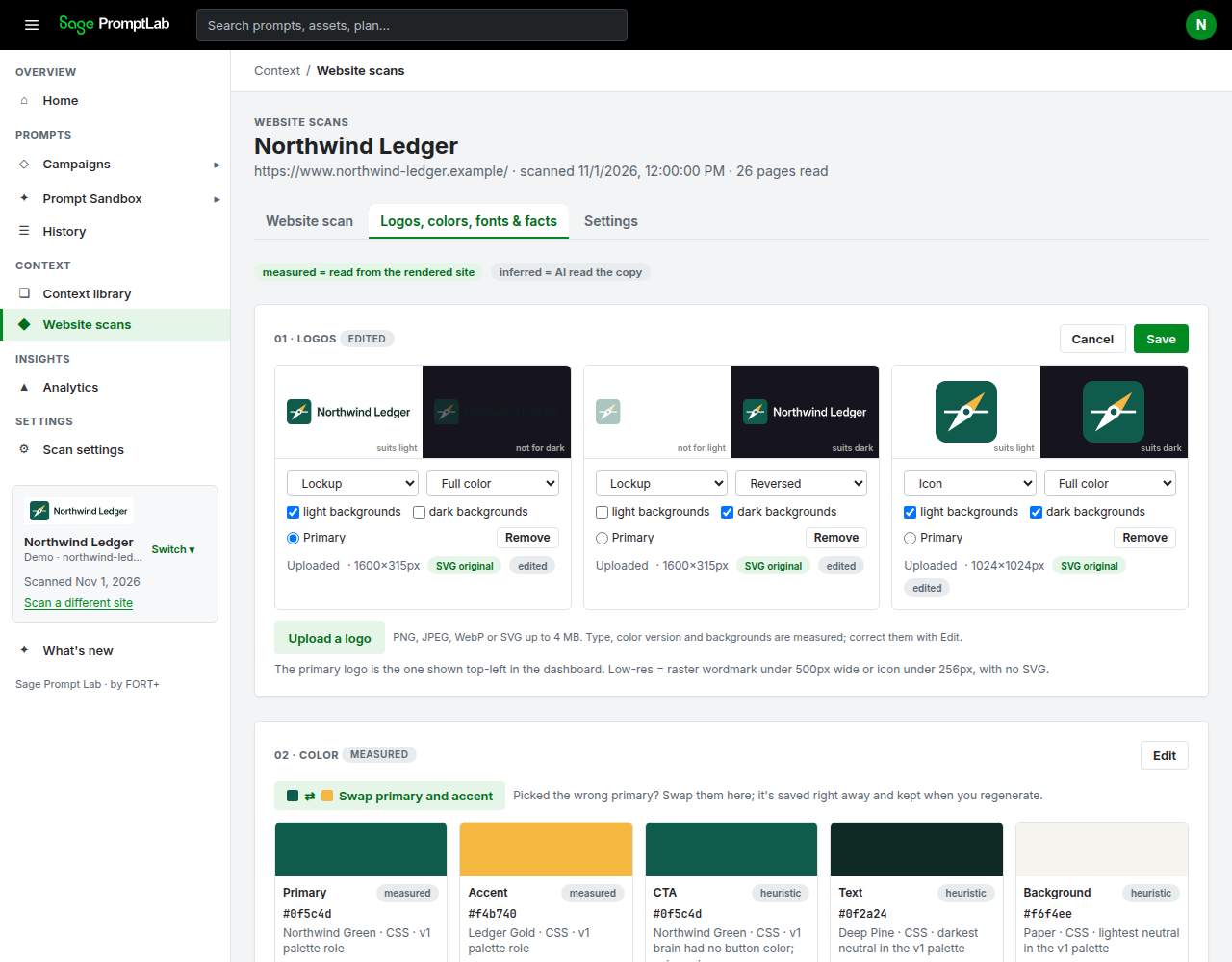
Upload a logo accepts PNG, JPEG, WebP, or SVG up to 4 MB. The button reads Uploading… while the file is sent, and the file is saved as soon as that finishes. You do not press Save for the upload itself. The button stays off while 01 · Logos is in Edit. The helper says type, color version, and backgrounds are measured, and that you correct them with Edit, then Save.
When you are not editing, a logo can show primary, Lockup or Icon, the treatment, tile, SVG original, or low-res. A line under the file can read Scanned · header, Scanned · footer, Favicon / site icon, or Uploaded. The note under the list says low-res means a raster wordmark under 500px wide, or an icon under 256px, with no SVG. If no logo was found, the section says to upload the full-color and reverse files.
On Website scan, The Mark is the written logo guidance. Edit opens Section headline, Lead, Clear space, Minimum width (px), Email header rule, Do, and Don't. Do and Don't are one item per line. If clear space or a minimum size is missing, the section can show Add from your brand guide and Add, which opens the same editor.
Logo Suite on Website scan, when more than one logo file exists, is a viewer. Form offers Lockup and Icon. Finish offers All, Full color, One color, and Reverse. Stage offers Light and Dark. Contact sheet shows every file. Those controls filter the view. They do not save a new logo. Change files under 01 · Logos.
Colors
On Logos, colors, fonts & facts, 02 · Color lists the roles Primary, Accent, CTA, Text, Background, Header, Hero, Body, and Footer. An empty role says not found.
Choose Edit, then set a role with the color control or the box whose placeholder is #rrggbb. ✕ removes that role. Save stores the roles. Cancel restores them.
When both a primary and an accent exist, Swap primary and accent is available. The helper says it is saved right away and kept when you regenerate. That immediate save happens when 02 · Color is not already open for editing. If it is, the swap waits for Save. While the immediate save runs, the button reads Swapping….
All measured colors is a bar of the colors found on the site. It is not a separate editor. The note under the roles says WordPress palette, block, and utility colors are filtered out, and whether the site is predominantly light or predominantly dark. A role can also say CSS or rendered page.
Color names is the next card. The helper says these are what your team calls each color, used on the website scan and in every prompt, and kept through regenerate. Edit the name next to the swatch. A name you already saved shows yours. Save names stores them. The confirmation says they are kept when the website scan is regenerated.
On Website scan, Color has its own Edit: Section headline, Lead, How the palette behaves (one per line), and Colors from your brand guide. Each guide color has boxes labeled hex, Name, and usage. The hint says these are colors the site does not show, such as print or guide-only colors. + Add adds a row. If none are listed, the section can show Add from your brand guide and Add.
Typography
On Logos, colors, fonts & facts, open 03 · Typography and choose Edit.
- The name box is labeled Font family. For a Google Fonts source, the placeholder is Search Google Fonts. For System, it is Search system fonts. For Self-hosted, Adobe Fonts, or Uploaded, it is Family name.
- Type to filter. Pick a row, or keep a name that is not in the list. The custom row reads Use and the name you typed. For Google Fonts it adds (not in Google Fonts). A line under the box can say how many Google Fonts loaded, and Loading Google Fonts… shows while the list opens.
- Menus set the role (Heading, Body, or Button), the source (Google Fonts, Self-hosted, Adobe Fonts, Uploaded, or System), and the license (Free, Paid, or Unknown).
- The weights box placeholder is 400, 700.
- Google fallback is the face used to preview a paid or self-hosted font.
- Remove family drops that row. + Add family adds one. Save stores the list.
The note under the list says one entry per family, and that icon fonts are excluded. Radius scale is shown there. It is not a field you edit.
On Website scan, Typography Edit has Section headline, Lead, and Type rules (one per line).
Voice
On Website scan, Voice Edit has Section headline, Summary, Pronoun / person, Tone attributes, Banned words, Example lines, Writing rules, and CTA style.
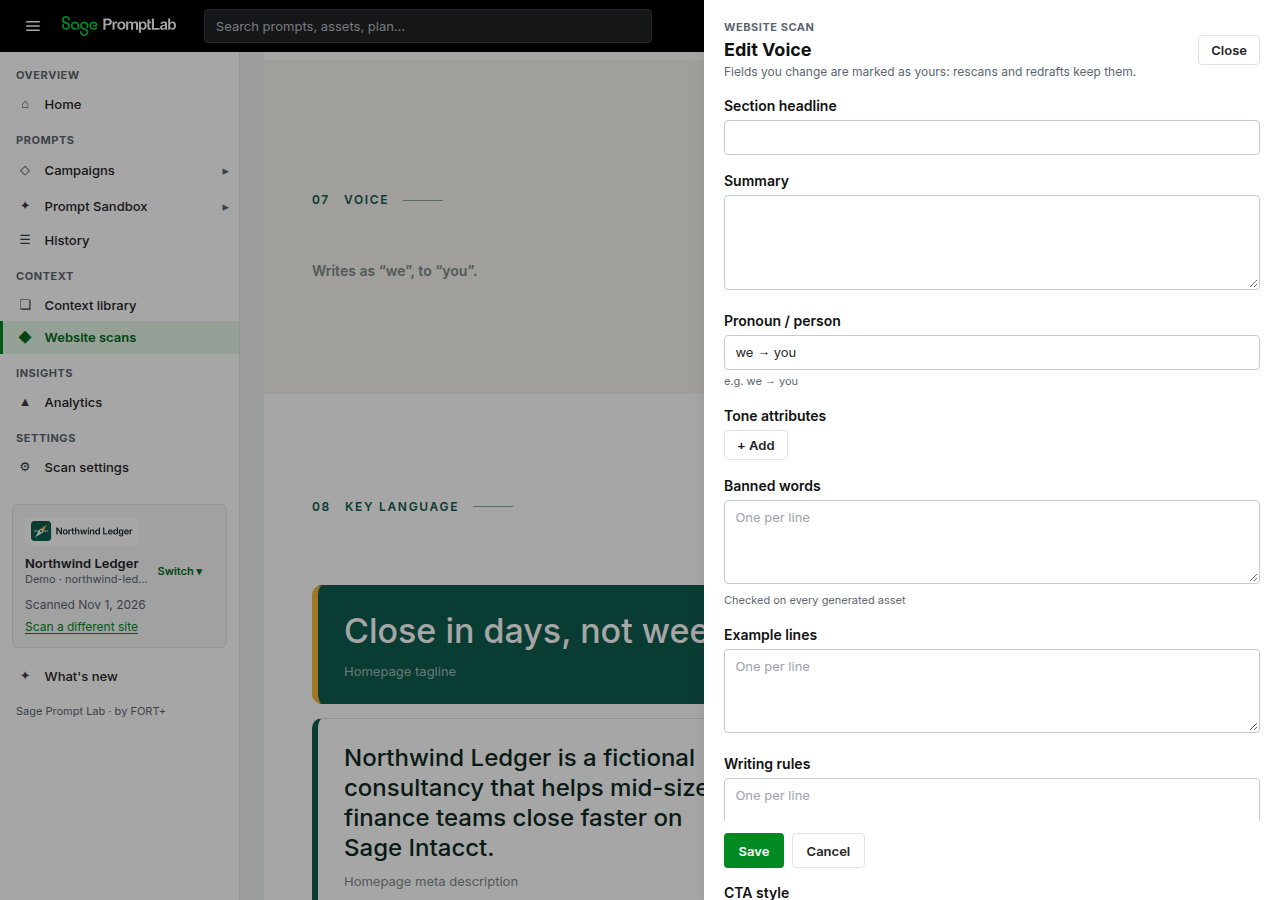
- Pronoun / person has the hint e.g. we → you.
- Each tone attribute has Name and Description. + Add adds one. ✕ removes a row.
- Banned words, Example lines, and Writing rules are one item per line. Banned words say they are checked on every generated asset.
On Logos, colors, fonts & facts, 04 · Identity & voice shows Name, Tagline, Positioning, Tone, Writing style, Phrases we actually use, CTAs, and Words to avoid. Choose Edit voice, business & guardrails first. Tone is a comma-separated line while editing. The lists are one item per line, with the placeholder One per line when a field has no other hint. Save website scan stores this card together with 05 · Business and 06 · Guardrails.
Use the Website scan Voice section for wording that must survive Regenerate website scan. The 04 · Identity & voice lists are a second copy of voice details, and a regenerate rebuilds them from the site.
Redraft positioning, voice & key language, on the Website scan page, asks Claude to read the crawled pages again. While it runs, the button reads Drafting… (about a minute). Fields you edited in those sections stay. The result can say how many fields were kept.
Products, proof, and facts
On Website scan, Positioning Edit has:
- Section headline, One-liner, Summary, and Category.
- Proof stats. Each row has Value, Label, and source. The hint says to use numbers the site states, with the page they are on, and that you can add unpublished ones from your brand guide or sales deck. If none are on file, the section shows Add from your brand guide and Add.
- Audience, with Buyer, Company size, Verticals (one per line), and Pains (one per line).
- Differentiators, with Title, Body, and source on each row.
- Competitors, with Direct (one per line) and Indirect (one per line).
On Logos, colors, fonts & facts, 05 · Business has Sage products, Marketplace partners / integrations, Verticals, Buyer roles, Differentiators, Proof points (only facts from the site), Named offers / programs, and Competitors (if named). These save with Save website scan. A regenerate rebuilds them. Prefer Proof stats, Differentiators, and Audience on the Website scan Positioning section for facts a rescan must keep.
Save campaign insights
On a campaign, Save to brand opens a review sheet. It suggests short lines from what you typed: the campaign name, goal, brief, angle, notes, and any text you pasted or uploaded. It does not pull a claim that only appears in generated copy. Each suggestion is one sentence, and you get about eight.
A line about a date, a discount, a deadline, an event, a webinar title, or a promo code is marked Time-bound and starts unchecked. Other lines start checked. You can edit the wording, change where it goes (proof points, key language, products, or audience), uncheck it, or remove it. You can also type a line of your own and pick a section. Nothing is stored until you press Save.
Save adds the checked lines. It does not replace what is already there, and it skips a line the brand already has. Each saved line records the campaign name and the date you saved it. You can edit or remove those lines the same way as any other line. Proof, taglines, phrases, product angles, and audience pains that land on the Website scan are kept when you regenerate. The sheet also shows how many words the brand context is, and a note when the lines you are about to save would make it noticeably longer.
Photo style
On Website scan, Photography Edit has Section headline, Lead, Subjects, Treatment, Composition, Never in the photography, and Photography prompt. Never in the photography says it goes into the photography prompt's never-list. The photography prompt hint says it is the shared style for generated images, and that edits are kept.
The same prompt is also a card on Logos, colors, fonts & facts, labeled Photography prompt. The box is labeled Photography prompt. Save prompt stores it and says Saved to the website scan. While it saves, the button reads Saving…. If you have edited it, Use the built prompt restores the prompt built from the Photography section. Generate style samples makes AI images from the prompt. While it runs, the button reads Generating… (about 30 s). Those samples show on Website scan under Style samples (AI generated). They are not photos from the site. Photos captured from the site are headed From the site · real photos.
Icon style
On Website scan, Visual Language Edit has Section headline, Lead, Icon style, and Treatment rules (one per line). When an icon style is written, the section shows Icons: and that note, then Generate example icons (or Regenerate example icons if examples exist). See Icons.
Gradients
Visual Language can show a Gradients block when the scan has gradient specs: a name, the color stops, the angle, and where each one is used. There is no field to edit gradients. If a gradient is wrong, you cannot correct it on these screens.
Guidelines and optional sections
Shape System appears when the brand has one. Edit includes This brand has a shape system, Section headline, Lead, Unit (px at 1080 wide), Accent corner radius (px; separate from card radius), Gaps between shapes, Allowed shapes, Fill types, and Cluster rules and limits. Hints under the later fields give examples such as gap sizes, shape names, solid, outline, tint, and how shapes may cluster. If gaps or cluster rules are missing, Add from your brand guide and Add open the same editor.
A shape system the scan only suggested can say it was suggested from the measurements, and that editing the section confirms it or turns it off. Clear This brand has a shape system to turn it off.
Key Language Edit has Section headline, Taglines (Text and Where it's used), Values line, Vocabulary (one per line), and Restricted terms (Term, Say instead, and Why). Restricted terms say they are checked on every generated asset. If none are listed, Add from your brand guide and Add open this editor.
Above the sections, Optional sections offers a button only for a section that is still empty:
- Add a shape system
- Add hard rules
- Add the current focus
The card says these show on the website scan once filled in, that hard rules and restricted terms are checked on every generated asset, and that the active focus steers campaign angles.
Hard rules (pre-ship checklist) is one item per line. The hint says checkable rules (em dashes, exclamation marks, ALL CAPS, emoji) run on every spoke.
Current focus asks for a year (placeholder Year, e.g. 2027) and quarters. Each quarter has a box placeholder Q1, a Theme, and active. + Add quarter adds one. On the scan, the section title can include the year.
Guardrails
On Logos, colors, fonts & facts, 06 · Guardrails has Topics to avoid and Sage-approved talking points (fed by Sage in v2). Both are one item per line, saved with Save website scan. A regenerate rebuilds them from the scan.
Two chips under those lists report Only use provided facts and Flag unverified claims as [VERIFY], each on or off. They are status chips. This screen does not give you a switch for them.
Scanned pages
The bottom of Logos, colors, fonts & facts is Scanned pages (the facts the AI may use). Open a page to read the text that was captured. You cannot edit that text there. Correct the fields above instead.
What your edits change
Saved brand fields are copied into campaign prompts: the name, voice, products, proof, and the rules you wrote. Copy prompt uses the brand as it is saved now. Every prompt asks your AI tool for the written copy only, never images or files. The photo style goes into the separate Image prompt for your own image tool. Brand colors and fonts do not restyle the Sage PromptLab dashboard.
Check accuracy before you campaign
Walk the scan once before Create your first campaign. Remove or correct anything the scan inferred that is not true. Leave unknowns empty.
- Product names. Compare Sage products, Named offers / programs, and Positioning with what you actually offer.
- Stats and proof points. Every number in Proof stats and Proof points (only facts from the site) needs a real source. The proof stat row has a source box for the page. If you cannot point at the page or your own brand guide, remove the stat.
- Claims and promises. Read Summary, One-liner, Differentiators, taglines, and Example lines. Keep only lines the organization would say.
- Legal and brand names. Brand name should be the name you publish under. Fix any other name the scan spelled wrong.
- Logos. Confirm the file, Lockup or Icon, Full color or Reversed, and which file is Primary.
- Colors. Primary, Accent, and Color names should match the real brand, not a nearby color the scan measured.
Next: Create your first campaign. To re-read the website later, see Refresh the scan.