
Campaigns
Copy and use your prompt
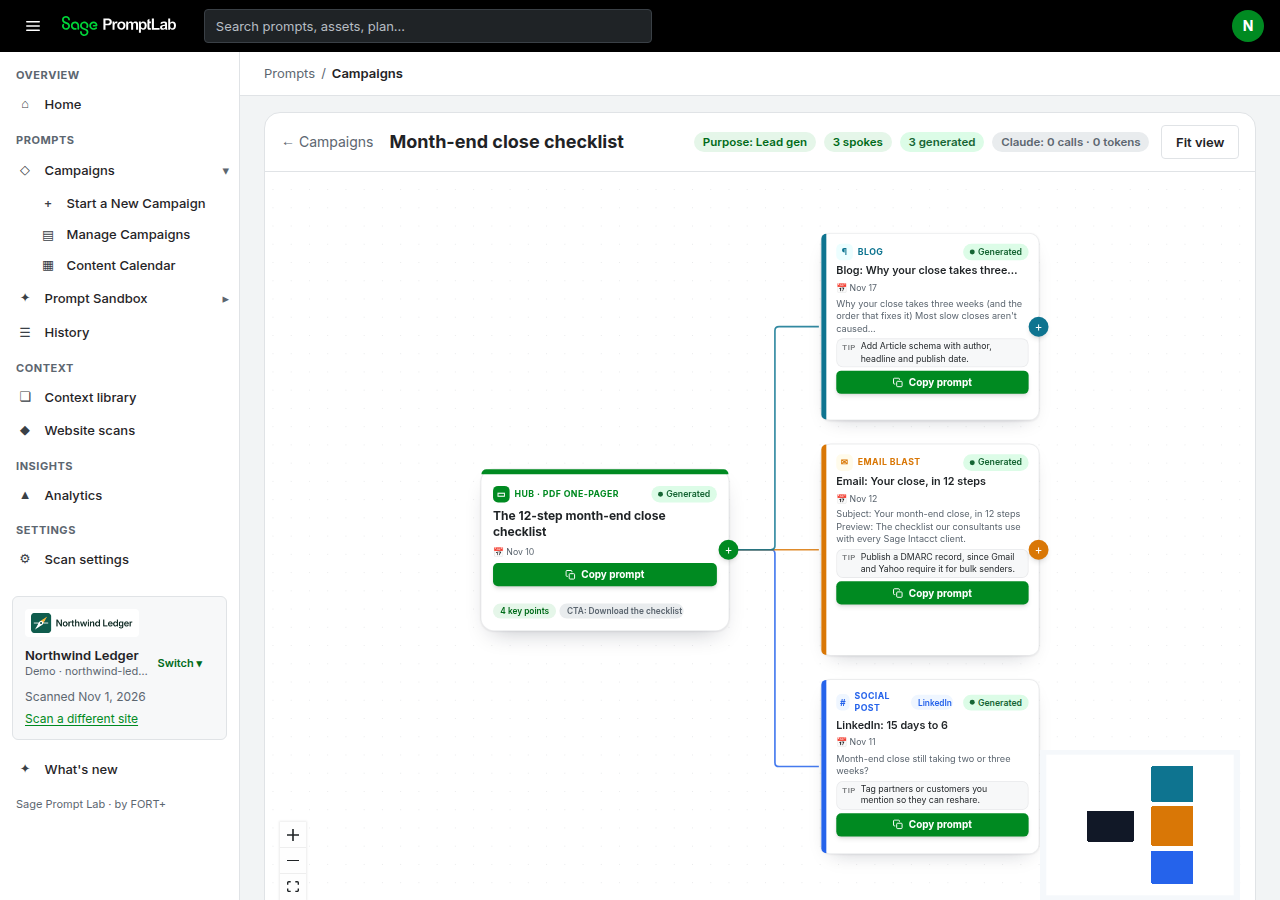
Review a card, copy its prompt, and bring a result back.
Review the card
Open a piece and review its content. On a related piece, Context from hub shows the saved context it inherited. The hub uses Campaign brief and Content instead of that tab.
Copy the prompt
Choose Copy prompt, or open the Prompt tab. Copy prompt copies the default format, Plain sections. Under Or copy as, the other formats are Markdown headings, XML tags, and Compact. Layouts change formatting only, not the content.
Paste the prompt into your external AI tool. Review factual claims and the requested output before you use the result. Do not assume a particular downloadable file type is guaranteed.
Suggested links
On a blog post, an article, a landing page, or a case study, the card shows Suggested links. Each row is an anchor text idea and a page from the website crawl: the title, the URL, and a one-line summary. You can edit the anchor, pick a different crawled page, paste your own URL, remove a row, or add one. The choices are saved with the brand.
The prompt asks for 3 to 5 internal links on descriptive anchor text, and it may use only the URLs you kept. It never invents a URL. Where no crawled page fits, the prompt uses a placeholder: [LINK: anchor text → NEW: topic]. A row like that is flagged Page to create. In a campaign, a related article links back to the hub and, where it fits, to a sibling piece. The hub links out to its supporting pieces. A piece that is not published yet stays a placeholder.
If the site crawl has not finished, the list is placeholders only. A short note says that real page suggestions appear after the site crawl finishes.
Blog and article prompts
A blog post or article adds a short set of writing rules in Rules. The opening states the answer. Headings are questions a reader would ask. Each section is one idea that still makes sense if someone quotes it alone. Product names and the partner's name are written exactly, and the draft does not say "our solution". A statistic is used only when it is in the brand context or something you supplied, and it is cited inline. Otherwise the draft leaves [STAT NEEDED: what + where]. Quotes, customers and authors are never invented. If no author was given, the draft leaves [AUTHOR NAME, ROLE]. The first paragraph names one intent and who it is for, and it leads with experience only this partner can claim. Internal link rules are unchanged.
These lines are for blog posts and articles only. Emails, social posts, landing pages and PDFs do not get them. They sit in Rules and are outside the 75 to 100 word budget, so the rest of the prompt stays the same length.
Check a draft
After you run a blog or article prompt, or paste a draft under Your model's output, Sage PromptLab flags leftover [LINK], [STAT NEEDED] and [AUTHOR] placeholders, numbers with no source nearby, and banned phrases. The banned-phrase check also runs on every other asset's output. Publishing steps, such as robots.txt, whether the page can be indexed, visible dates, and an HTML version of a PDF, are tips on the blog card. They are not part of the prompt.
Bring a result back
On the Prompt tab, open Your model's output. The box placeholder reads: Paste what ChatGPT, Claude or Copilot wrote from this prompt.
Give feedback
Under a prompt, How did this prompt work for you? offers thumbs up and thumbs down. Thumbs down opens a reason: Off-brand, Too generic, Wrong product, Too long, or Other. You can add a note either way. The note box says Anything we should fix? One rating is kept for you on that item. Changing it updates the same rating.
Paste your draft is where you paste the output from your own AI tool. PromptLab checks the draft, then Get revision prompt writes a short prompt you can copy. It includes the draft, the flags, your thumbs-down reason and note, and only the brand rules that match those issues. Each paste is saved as v1, v2, and so on. Compare any two versions, and mark one as final.
Send feedback in the header is for a bug, an idea, or anything else. The note includes the page you are on.
Tips on a card
A card or its panel can show a Tip. The tip is guidance for using or deploying the asset. Reading the tip does not itself change the prompt. On a blog card, tips include publishing steps such as robots.txt, whether the page can be indexed, visible dates, and an HTML version of a PDF.